Define joint
Define joint
Use the Define joint tool to define joint conditions at steel bar connections used in the design calculations.

Tool palette and settings
When you activate the tool, a new tool palette opens.

Main tools
-
Define – create a new steel joint definition on selected members.
-
Properties – view or edit properties of an existing joint definition.
-
Default settings – open default settings for new joint definitions.
Joint types in Define
-
Column splice – define a splice joint between column members.
-
Beam splice – define a splice joint between beam members.
-
Column base – define a base joint between column and support level.
-
Beam to beam – define a joint between two beam members.
-
Beam to column – define a joint between a beam and a column.
-
Knee – define a knee-type frame joint.
-
Bracing – define a bracing joint.
-
General joint – define a general joint used for IDEA StatiCa export.
Setting
- Select joint from library – checkbox that opens a dialogue for selecting a previously saved user-designed joint from the library.
Default settings
When you click Default settings, a dialogue opens for configuring default joint definition parameters.

- Identifier – text field for the default joint identifier.
Available solutions for the selected elements
After you select the joint type you have to select suitable elements in the model to apply the joint definition.
If the joint type is not compatible with the selected elements, a warning message appears.
If the joint type is compatible then a dialogue with Available solutions opens.

in the dialogue, you can see all the available joint solutions for the selected elements. You have to select one of the available solutions to apply the joint definition.
In the bottom of the dialogue, there is one additonal button Unavailable solutions...
When you press this button, a dialogue opens with all the solutions that are not available for the selected elements together with the reason why they are not available.

Load joint from library dialogue
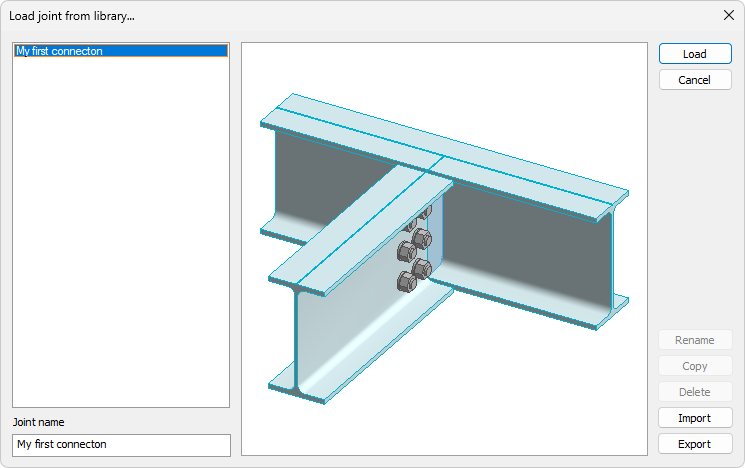
If Select joint from library is checked, the Load joint from library... dialogue opens.
-
Saved joints list – list of saved joints on the left side of the dialogue.
-
Joint name field – text field below the saved-joints list showing the selected joint name.
-
Joint preview – image preview of the selected joint in the middle area.
-
Load – load the selected library joint.
-
Import – import library joint data.
-
Export – export the selected library joint data.