Punching reinforcement
When Punching reinforcement is selected in the subtype selector, the Auto design workflow is used to define punching reinforcement preferences and run automatic design for selected punching regions.
Tool palette

The Auto design tool palette contains the following tools and options:
-
Parameters – prompts you to select a punching region and opens the Design parameters dialogue.
-
Design – runs automatic punching reinforcement design with the current settings.
-
Calculation – available while Design is selected; choose Load combinations or Load groups as the design basis.
-
Display table – checkbox that shows the utilization table when enabled.
Parameters dialogue
After you start Parameters, you are prompted to select a punching region. The Design parameters dialogue then opens. On the left side, you select one of the available design modes.
Design modes
-
Stud rail, general – general stud rail product mode.
-
Stud rail PEIKKO PSB product – specific PEIKKO PSB product mode.
-
Banded bar – banded bar mode.
-
Circular stirrup – circular stirrup mode.
-
Open stirrup – open stirrup mode.
Stud rail mode
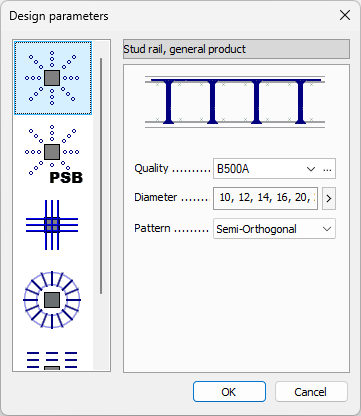
On the left side, this mode provides:
-
Quality – drop-down list with available reinforcement steel qualities, with a library button next to it.
-
Diameter – comma-separated list of selected diameters.
-
Diameter selection button (>) – opens a small dialogue where you select one or more diameters using checkboxes.
-
Pattern – drop-down list with: Radial, Orthogonal, and Semi-orthogonal.
Stud rail PEIKKO PSB mode
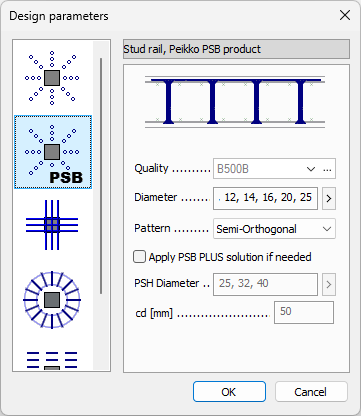
This mode includes the same basic settings as Stud rail, with additional PSB-specific options:
-
Quality – drop-down list with available reinforcement steel qualities, with an edit library button.
-
Diameter – comma-separated list of selected diameters.
-
Diameter selection button (>) – opens a small dialogue where you select one or more diameters using checkboxes.
-
Pattern – drop-down list with: Radial, Orthogonal, and Semi-orthogonal.
-
Apply PSB plus solution if needed – checkbox that enables additional PSB-plus settings.
When Apply PSB plus solution if needed is enabled, the following settings are available:
-
DH diameter – comma-separated list of selected diameters.
-
DH diameter selection button (>) – opens a small dialogue where you select diameters using checkboxes.
-
CD – numeric field.
Bended bar mode
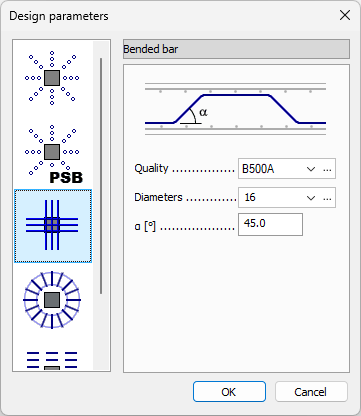
On the left side, this mode provides:
-
Quality – drop-down list with available reinforcement steel qualities, with an edit library button next to it.
-
Diameter – drop-down list with available bar diameters, with an edit library button next to it.
-
ɑ – numeric field for the bending angle.
Circular stirrup mode
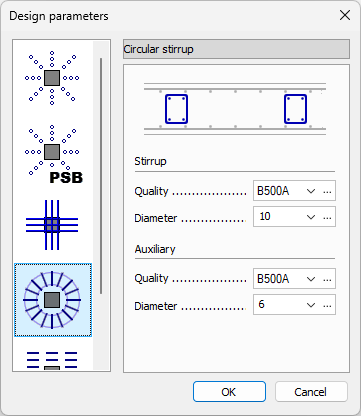
On the left side, this mode provides main stirrup settings and auxiliary bar settings.
Stirrup
-
Quality – drop-down list with available reinforcement steel qualities, with an edit library button next to it.
-
Diameter – drop-down list with available diameters, with an edit library button next to it.
Auxiliary bar
-
Quality – drop-down list with available reinforcement steel qualities, with an edit library button next to it.
-
Diameter – drop-down list with available diameters, with an edit library button next to it.
Open stirrup mode
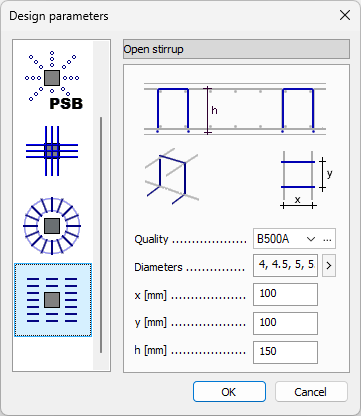
On the left side, this mode provides:
-
Quality – drop-down list with available reinforcement steel qualities, with an edit library button next to it.
-
Diameters – comma-separated list of selected diameters.
-
Diameter selection button (>) – opens a small dialogue where you select one or more diameters using checkboxes.
-
x – numeric field.
-
y – numeric field.
-
h – numeric field.
A small image above the settings illustrates the meaning of the x, y, and h parameters.
Design tool
Use Design similarly to the other design tools: you can select suitable punching regions directly in the model view, or run design from the Utilization table dialogue.
When Display table is checked and you start Design, a Utilization table opens.
Utilization table structure
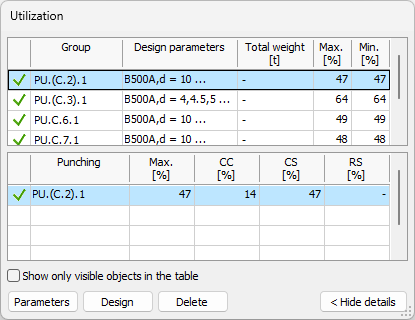
The Utilization table is split into two tables:
-
Groups table (top) – shows design groups and ungrouped single elements.
-
Element details table (bottom) – shows detailed utilization results for elements in the selected group, or for the selected ungrouped single element.
Groups table columns
The groups table uses the same columns as all other auto design group tables.
Element details table columns
The punching element details table contains the following columns:
-
Passed – unnamed status column with pass/fail icon result.
-
Element name – name of the element.
-
Max. – maximum utilization value for the element.
-
CC – concrete compression utilization.
-
CS – concrete shear utilization.
-
RS – reinforcement shear utilization.
Table options and buttons
Below the element details table, the following controls are available:
-
Show only visible objects in the table – limits table rows to currently visible objects.
-
Parameters – opens the same Parameters dialogue as in the tool palette, for the selected group or element.
-
Design – runs design for the selected element in the table.
-
Delete – deletes the added quantity from the selected element.