Shell Default Connections
The Shell Default Connections dialogue assigns named edge-connection presets to individual sides of a shell (plate or wall) while also letting you detach end-points for each edge.
Following tools provide this dialogue:
- Plane plate, Profiled plate, Timber plate
- Plane wall, Profiled wall, Timber wall
- Fictitious shell
- Simple retaining wall
- Foundation slab
When you press the Connections tool on the palette or Default connections tab on relevant dialogues, the following (or similar) window opens.
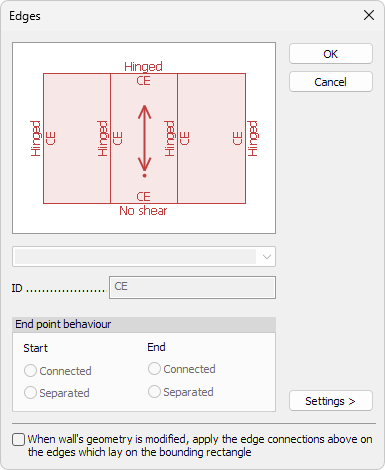
Edge selection
Click any edge in the graphical preview to make it active (highlighted).
The controls on the right apply only to the currently selected edge.
Connection preset
- Type – drop-down list of named connections from the global library
- Edit library… – a special option in the drop-down menu that opens the library of the named connections. There you can make or change the stiffness and behaviour of the named connections
To read more about the Edit library… function for the stiffness and behaviour options, see the topic:
User interface ➔ Tab menus ➔ Structure ➔ Additional dialogues ➔ Edge connection
Identifier
- ID – optional text label for the selected edge connection
Endpoint behaviour
Choose how the edge’s finite-element nodes interact with adjacent elements.
- Start – select behaviour for the start of the edge.
- End – select behaviour for the end of the edge.
Two options are available for both ends: Connected and Separated.
To read more about endpoint behavior see:
User interface ➔ Tab menus ➔ Structure ➔ Additional dialogues ➔ Endpoint behaviour
Wall specific option
For Simple retaining wall and Plane wall, an extra checkbox appears below the edge list:
- When wall’s geometry is modified, apply the edge connections above on the edges which lie on the bounding rectangle
Tick this box if you want the chosen connection presets to be re-applied automatically whenever the wall’s outline is edited (for example, after changing height or alignment).
Settings menu
When you click on the Settings > button in the bottom, a new menu opens.

- Save – save the settings with a name to use later
- Load – load a previously saved setting
- Save as default – save settings that are automatically used as default next time in this dialogue
- Load default - load the default settings to overwrite current settings