Bar End conditions
The Bar - End conditions dialogue controls releases, eccentricities, and end-specific settings for line elements.
Following tools provide this dialogue. Some use full dialogue, others use only reduced version:
- Beam
- Column
- Intermediate section
- Column corbel
- Pile
- Wall foundation
When you open the End conditions tab, the following (or similar) window appears.
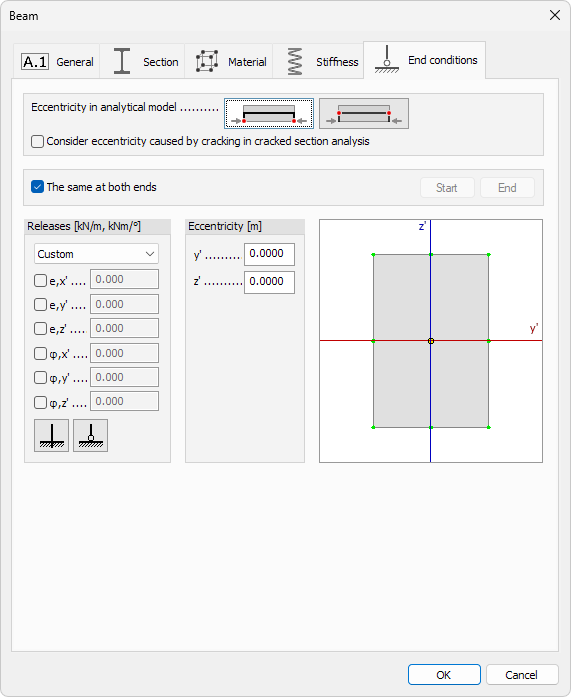
Eccentricity in analytical model
Two mutually exclusive options determine where end-releases are applied:
- End-releases applied at ends of theoretical axis – use when the bar connects directly to a shell or to another bar along its centre-line
- End-releases applied at centre of gravity (physical axis) – use when the joint is offset from the axis of the connected bar
- Consider eccentricity caused by cracking in cracked section analysis – include additional offset created by redistributed stresses
Same at both ends
- The same at both ends – when ticked, start and end share identical settings.
Untick to activate Start and End buttons and assign different releases and offsets per end
Releases
- Type – drop-down list of named release sets
- Edit library… – opens a dedicated window where you can add, rename, or modify release presets (read below for more detail)
Each degree of freedom has a checkbox and a numeric spring value (0 = free, large number = fixed):
| Translation | Rotation |
|---|---|
| e,x′ – axial | φ,x′ – torsion |
| e,y′ – local y | φ,y′ – bending about y |
| e,z′ – local z | φ,z′ – bending about z |
Quick presets:
- Fixed – sets all six components to rigid
- Hinged – releases only bending rotations φ,y′ and φ,z′ while keeping torsion and translations fixed
Eccentricity
Specify local offsets between the analytical line and the physical centroid:
- y′ – lateral offset
- z′ – vertical offset
Graphical snap
A miniature cross-section sketch shows key reference points (e.g., top-left corner, centroid). Click any point to auto-fill the y′ and z′ fields with its coordinates, ensuring quick and accurate placement.
Edit library dialogue
Selecting Edit library… from the Type drop-down opens a window for creating, modifying, and organising named end-release sets.

Names of saved releases
On the left hand side is a scrollable list shows every saved release set.
Click a name to load its parameters into the right-hand controls.
Parameters
On the right hand side are the parameters for selected release.
- Name – text field for the selected release set
- Degrees of freedom – tick a box to activate the numeric spring field
- e,x′ – axial translation
- e,y′ – local y translation
- e,z′ – local z translation
- φ,x′ – torsion
- φ,y′ – bending about y
- φ,z′ – bending about z
- Quick presets
- Fixed – sets every spring to rigid
- Hinged – releases rotations φ,y′ and φ,z′ while keeping others rigid
Bottom-row actions
- New – add the current settings as a new library entry
- Modify – overwrite the highlighted entry with current settings
- Delete – remove the highlighted entry
- Import – load a .fdlbc file to add entries. Entries with matching names will be ignored, keeping the local definitions
- Export – save the entire library to an external file