Load cases
Use Load cases tool to create and modify load cases.

When you select the Load cases tool, a new dialogue window opens.
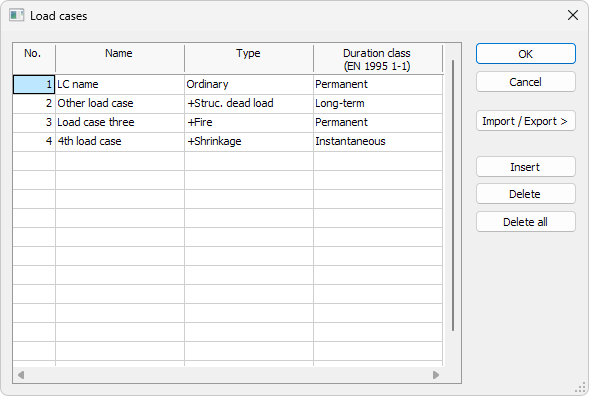
- Name – add or change the name of the load case
- Type – select type of the load case. There are 10 user-selectable types:
- Ordinary – regular load case
- +Struc. dead load – load case, where FEM-Design automatically calculates dead load to all structural elements and adds it as invisible load
- +Soil dead load – load case, where FEM-Design automatically calculates dead load to soil and adds it as invisible load
- +Shrinkage – load case, where FEM-Design automatically calculates free shrinkage strain behavior, which will be considered as a load effect in concrete design
- +Camber sim. – load case where the camber simulation by prestressing is considered. Camber simulation can be turned on for Beam and Profiled plate/Profiled wall
- +Fire – load case, where fire load is considered in design calculations
- +Seis load – load case, where sway and torsional effect components calculated from seismic calculations will be considered as a load effect in analysis and design calculations. There are different options in the Type selector for X and Y direction
- Duration class (EN 1995-1-1) – select the load duration for timber calculations. Options are according to Eurocode: Permanent, Long-term, Medium-term, Short-term and Instantaneous
- Import/Export > – import or export the load cases (read below in more detail)
- Insert – insert a new load case either at the end of the list or in between the existing load cases
- Delete – delete the selected load case
- Delete all – deletes all load cases
caution
Deleting a load case deletes all the forces in it.
info
You can add new load cases by clicking on the next available Name field.
info
There are other types of load cases that are applied to automatically generated load cases, for example generated with Wind load macro.
note
To read more about camber simulation options, see the relevant topics below:
- For bar elements see:
User interface ➔ Tab menus ➔ Structure ➔ Additional dialogues ➔ Bar General - For shell elements see:
User interface ➔ Tab menus ➔ Structure ➔ Additional dialogues ➔ Shell General
Import/Export
When you click the Import/Export > button, a new menu opens.

- Save as default – save the load case list to use as default for every new project
- Save – save the load case list to a file to use later
- Load – load a previously saved list of load cases
- Copy – copy the load case list to clipboard
- Paste – paste the load case list from clipboard