Seismic load
Use the Seismic load tool to change the behaviour and parameters of the seismic load.

When you select the Seismic load tool from the panel, a new dialogue window opens. This dialogue window has multiple tabs.
Structure information
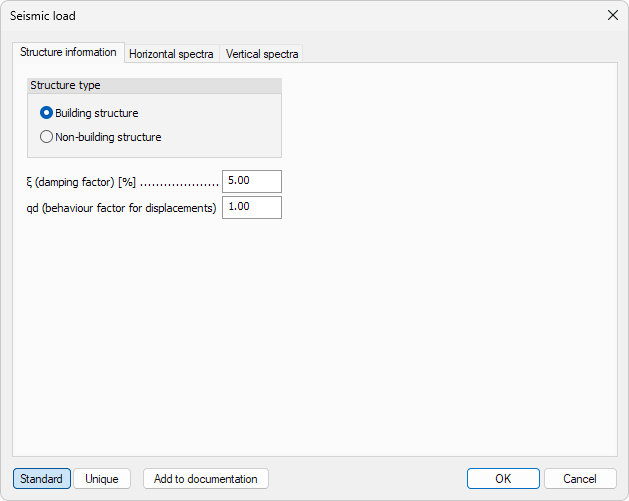
- Building structure – select to use a building structure
- Non-building structure – select to use a non-building structure
- ξ (damping factor) – viscous damping ratio (generally 5%), which is used in Modal analysis when the summation of the effect of the same direction vibration shapes is carried out by the CQC (Complete Quadratic Combination)
- qd (behaviour factor for displacements) – the displacements from seismic analysis is increased with this factor
Horizontal spectra
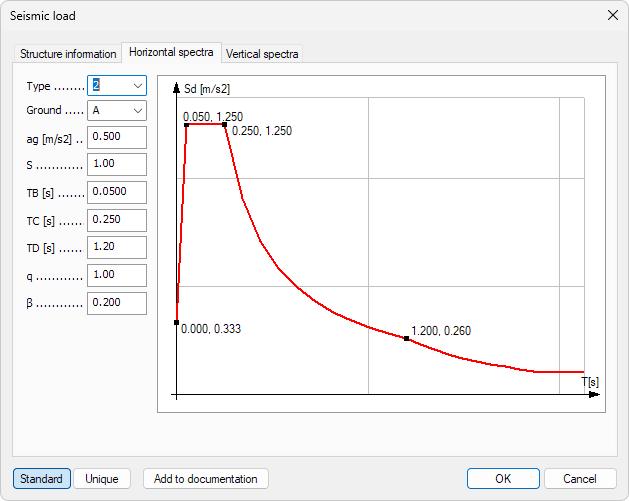
- Type – sets spectra to 1 or 2
- Ground – defines ground type A, B, C, D or E
Changing Type and Ground sets presets for S, TB, TC and TD
- ag – design ground acceleration
- S – soil factor
- TB – lower corner period of the constant spectral acceleration range
- TC – upper corner period of the constant spectral acceleration range
- TD – corner period at the beginning of the constant displacement response range of the spectrum
- q – behaviour factor that depends on material and type of the structure
- β – lower bound factor for the horizontal design spectrum
Vertical spectra
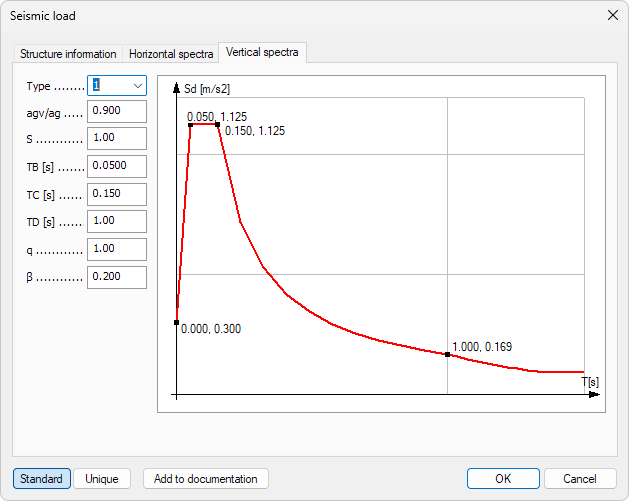
- Type – sets spectra to 1 or 2
- avg/ag – vertical design ground acceleration ratio to design ground acceleration
- S – soil factor
- TB – lower corner period of the constant spectral acceleration range
- TC – upper corner period of the constant spectral acceleration range
- TD – corner period at the beginning of the constant displacement response range of the spectrum
- q – behavior factor that depends on material and type of the structure
- β – lower bound factor for the vertical design spectrum
Standard or unique
In the bottom of the dialogue window are two buttons: Standard or Unique. These change how the spectra data is inserted. Both the horizontal and vertical spectra are changed at the same time when either of the options is selected.
When the Standard spectra is selected, then you can fill in the standard values, for example Type or Ground. The input fields for Standard spectra is shown in the images above (for both the horizontal and vertical spectra).
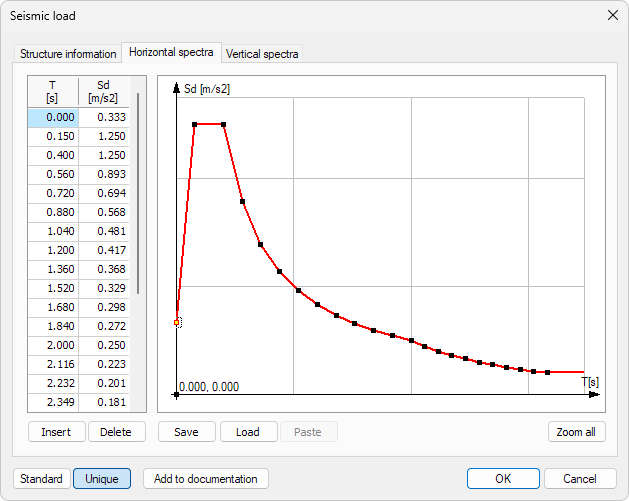
When the Unique spectra is selected, then you can manually modify the spectra curve, add points and change the values of existing points. The dialogue window for both the horizontal and vertical spectra is the following:
-
T – time-point, x-coordinate for the datapoint in the graph
-
Sd – design spectral acceleration, y-coordinate for the datapoint in the graph. Calculated as: Se(T) * q
-
Insert – insert new time datapoint
-
Delete – removes the marked time datapoint
-
Save – save the settings with a name to use later
-
Load – load a previously saved setting
-
Paste – possibility to paste information from clipboard
-
Zoom all – zoom the graph to fit it in the view
You can select points of interest directly from the graph view with mouse by using a selection box.
Add to documentation
You can add all the relevant seismic load data to the documentation by using the button Add to documentation.