Detailed result
Detailed result
The Detailed result tool is used to show detailed result view on some result types.

The Detailed result display is depending on the result type that you are displaying and is described for each analysis result in separate topics.
Prerequisites and result selection
The analysis result must be shown before you can request the detailed results for it. After showing the result in the view, depending on the result, one of the following workflows is used:
- selecting an object directly in the model to view its detailed results
- selecting or defining a result point using an additional tool palette
For example, Bar internal forces allow you to select a bar element directly, while Moving load dynamic displacement results require you to define a result point on the shell surface before detailed results can be shown.
Result point tool palette
For result types that require a specific evaluation point, an additional tool palette opens.

Main tools:
- New – create a new result point
- Properties – edit properties of the selected result point
- Select – select an existing result point
- Delete – remove the selected result point
- Default settings – define default settings for newly created result points
Additional controls in the palette:
- Name – text field for entering a designator for the result point
- Display result – checkbox to automatically display the detailed result for the next selected point
Default settings
The Default settings tool opens a dialogue that contains only the Name field.

Detailed results window
Detailed results are shown in a separate window inside the FEM-Design user interface. When this window is active, the overall UI layout changes slightly.
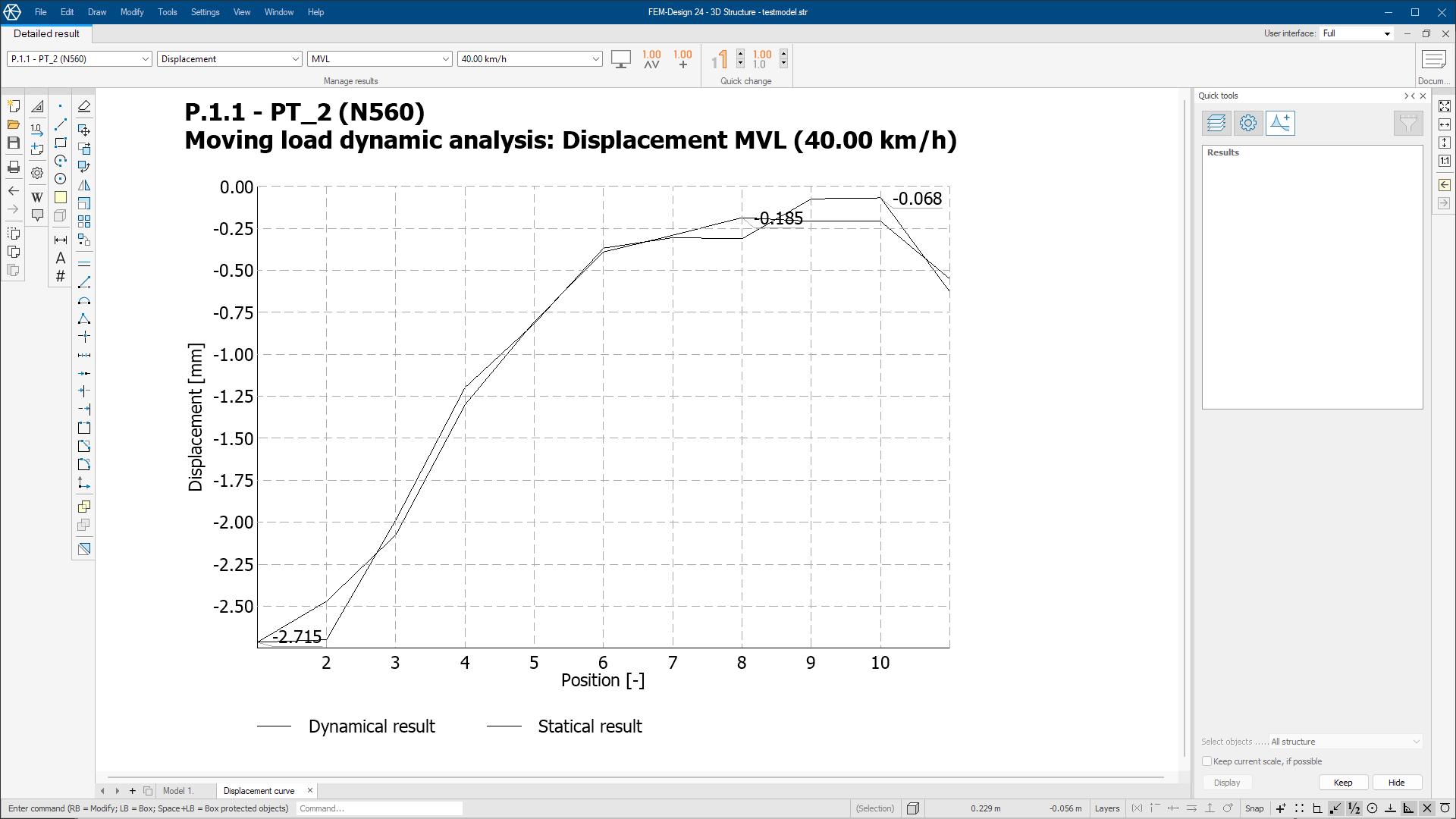
The Detailed results mode contains additional options and tools.
The detailed result mode tools and layout is described in it's separate article.
The graphical window will contain different views and data depending on the chosen result.
Look for the specific result at the:
Analysis ➔ Analysis results